An AI video generator for planning the action

Describe what changes between the opening and the cut. The MAGI 2 AI video generator lets you explore a shot in motion, from a hand lifting an object to a camera revealing the room around it. Start with text or use an image-input mode to establish the first view.

Shot design

Tell the AI video generator where the action ends

A clear ending makes the rest of the brief easier to write. Decide which detail the audience should understand by the cut. Give the AI video generator an opening view, a change the viewer can follow and a final position that leaves the editor somewhere to go.

01

Block an action in the AI video generator

Give the AI video generator an action with a visible start and finish. For a hand opening a box, begin with the lid closed and finish when the object inside is visible. If you also need someone to take the object across the room, consider developing that as a second take with its own framing.

02

Set a camera path in the AI video generator

Use the AI video generator to test a fixed camera first when the subject has a complicated move. A fixed frame makes it easier to see whether the action itself works. Then try a tracking view that follows the subject. Compare how much you learn from the background in each version and where your attention goes.

03

Give the AI video generator an opening frame

A starting image lets you bring a composition you have already approved to the AI video generator. Select a mode that accepts it and describe what happens next. A prompt about the direction of a glance or the pace of a reveal gives the motion a purpose. Check whether the subject is still readable as it moves.

Scenes to try

Three briefs for the AI video generator

Write a brief that someone could act out. These examples use movement to reveal a location, show a detail or explain a cause. Try the AI video generator with one action, then see what a different camera distance does to the same idea.

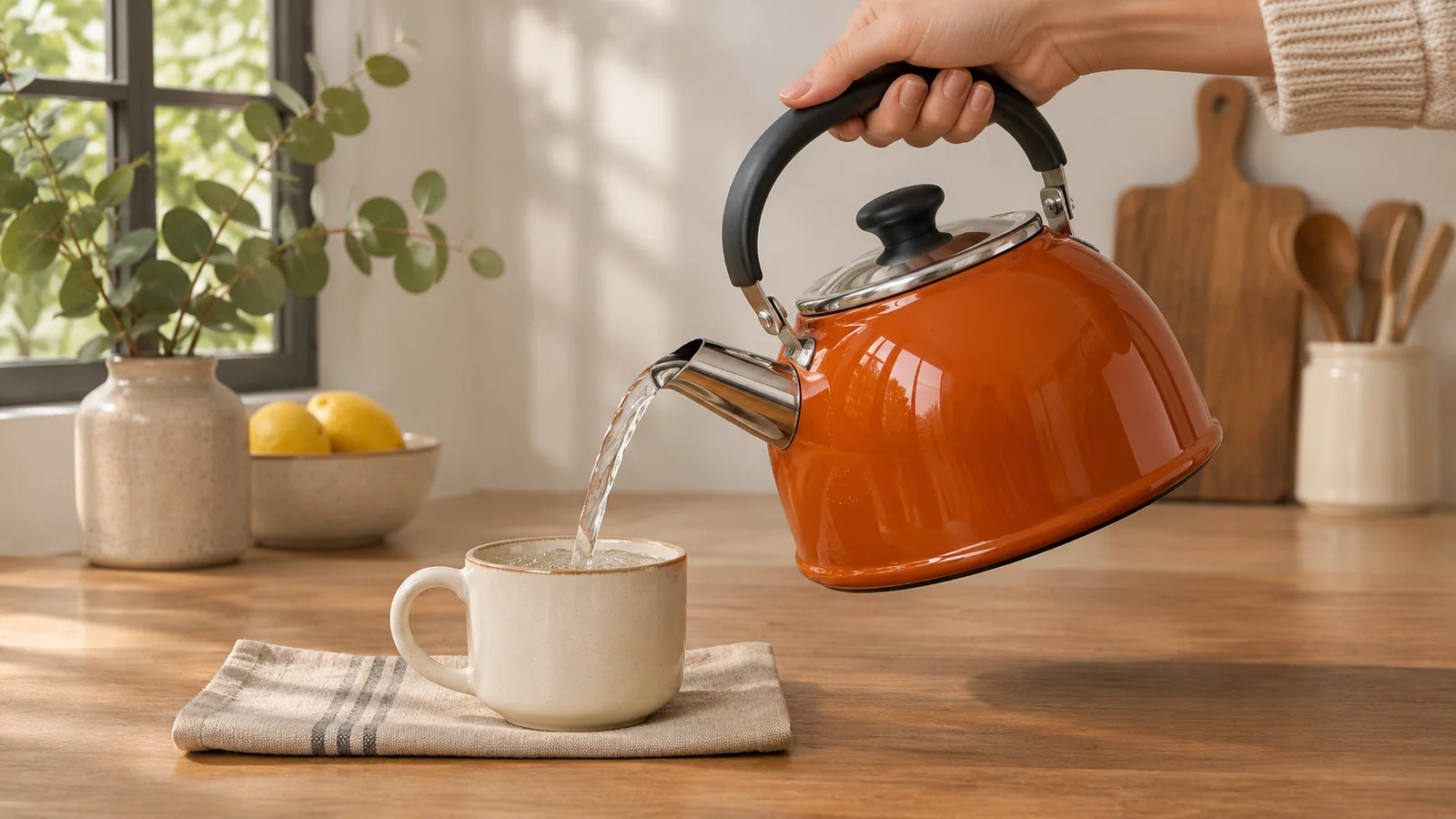
Orange enamel kettle pouring into a white cup
Product reveal

Follow the pour

Ask the AI video generator to hold a close view of the tilted kettle. Let the moving stream lead the eye down to the cup, then hold as the cup fills.

Potter shaping clay in a studio
Process film

Stay with the potter’s hands

Tell the AI video generator to keep both hands and the spinning clay in frame. Follow the fingertips as they rise from the base of the vessel to its lip.

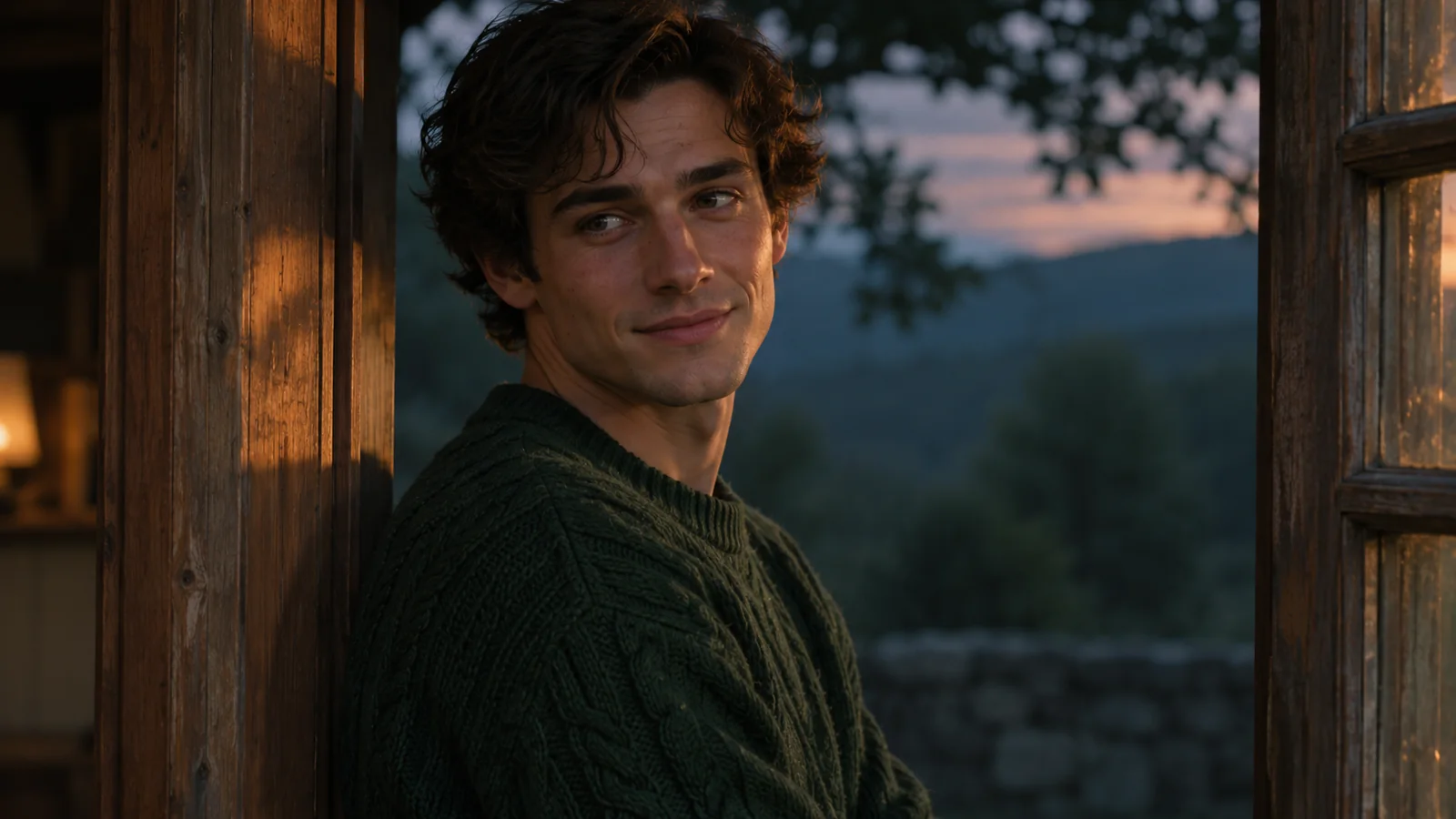
Actor in a green sweater turning at a doorway
Portrait in motion

Time the reaction

Use the AI video generator to test the beat before a smile. Let the actor at the doorway turn first and hold the shot until the expression is easy to read.

From prompt to playback

Plan, play and revise in the AI video generator

The first take is a way to test timing. A small change to a prompt is easier to evaluate when you know exactly which moment felt rushed or unclear. Use the AI video generator to make a second take that answers that observation.

  1. 01

    Set up the AI video generator opening

    Identify who or what is in the frame, the position of the camera and the subject’s starting pose. A brief to the AI video generator can be as simple as a cook standing over an empty board with a lemon in one hand. That gives the opening a clear shape before the knife or camera moves.

  2. 02

    Describe timing to the AI video generator

    Tell the AI video generator what happens first and what follows. The cook places the lemon down, then the camera moves closer as the peel curls away. Two linked actions are easy to follow. If several things must change at once, write another version that gives the most important movement enough space on screen.

  3. 03

    Check the AI video generator take at the cut

    Play the AI video generator result all the way through before judging individual frames. Check where the viewer is looking when the clip ends. If the next shot opens on the right side of the frame, consider whether the last movement leads the eye there. A take can look good on its own and still need a different ending.

  4. 04

    Compare two AI video generator takes

    Change one instruction in the AI video generator and compare both takes in sequence. Try a pause before the reveal or a camera that stays a little farther back. Keep the rest of the brief consistent so you can attribute the difference to a specific choice and explain it during a review.

Directing questions

Using the AI video generator for your next cut

These questions cover prompt structure, reference frames, motion and the practical details of preparing and reviewing a take.

Should I use text or start the AI video generator with an image?

Use text when you are exploring staging and want to see how the shot might begin. Use an image-input mode when you already have a composition that matters. In either case, describe the motion separately. The AI video generator needs a clear idea of what the subject does after the opening frame.

How do I describe a camera move to the AI video generator?

Name where the camera starts, the path it follows and the detail it should settle on. For example, ask the AI video generator for a low view along a table that slides toward an open notebook and ends over the drawing. Mention whether the subject moves at the same time. Both movements affect how the viewer reads the shot.

What if the AI video generator puts too much in one take?

Split the sequence where the viewer’s attention changes. Make one clip about a person reaching for a door and another about the view through the opening. Give the AI video generator a separate brief for each. When you review the pair, look at the hand position and direction of travel on either side of the intended cut.

Can I give the AI video generator an ending frame?

If the selected mode accepts a last frame, provide it alongside the opening view. Give the AI video generator a plausible action that connects the two positions. If the mode uses text or a starting image only, describe the desired endpoint in words. Play the result to see whether the final composition suits your edit.

How do I judge the pace of an AI video generator take?

Watch the AI video generator take once with no pauses. Note the first moment you understand the action and the point where your attention starts to wander. Watch it again and compare those moments with your brief. A prompt that asks the subject to pause or begin moving earlier can help you test a more useful rhythm.

Which references work well for people in the AI video generator?

Choose a frame where the pose and direction of travel are readable. If the next action involves a hand, include it in the starting image. Ask the AI video generator for one purposeful gesture before adding a larger camera move. Inspect how clothing, nearby objects and the background behave as the body changes position.

How do I frame AI video generator clips for different screens?

Select an available aspect ratio that matches the intended screen before using the AI video generator. For a narrow frame, plan the subject’s path so it stays visible through the full action. For a wide frame, decide how much of the environment should help tell the story. Review the start, midpoint and end at delivery size.

How do AI video generator credits and downloads work?

Check the estimate displayed in the AI video generator before submitting the task. The settings and selected model determine its credit requirement. Use the workspace to return to a submitted take or inspect its status. Downloads require an eligible paid plan or credit pack. Compare your options if you need to deliver clips regularly.

MAGI 2

Direct a take in the AI video generator

Choose the action, describe where it begins and decide what should be visible at the cut. Review your first take with that endpoint in mind.